

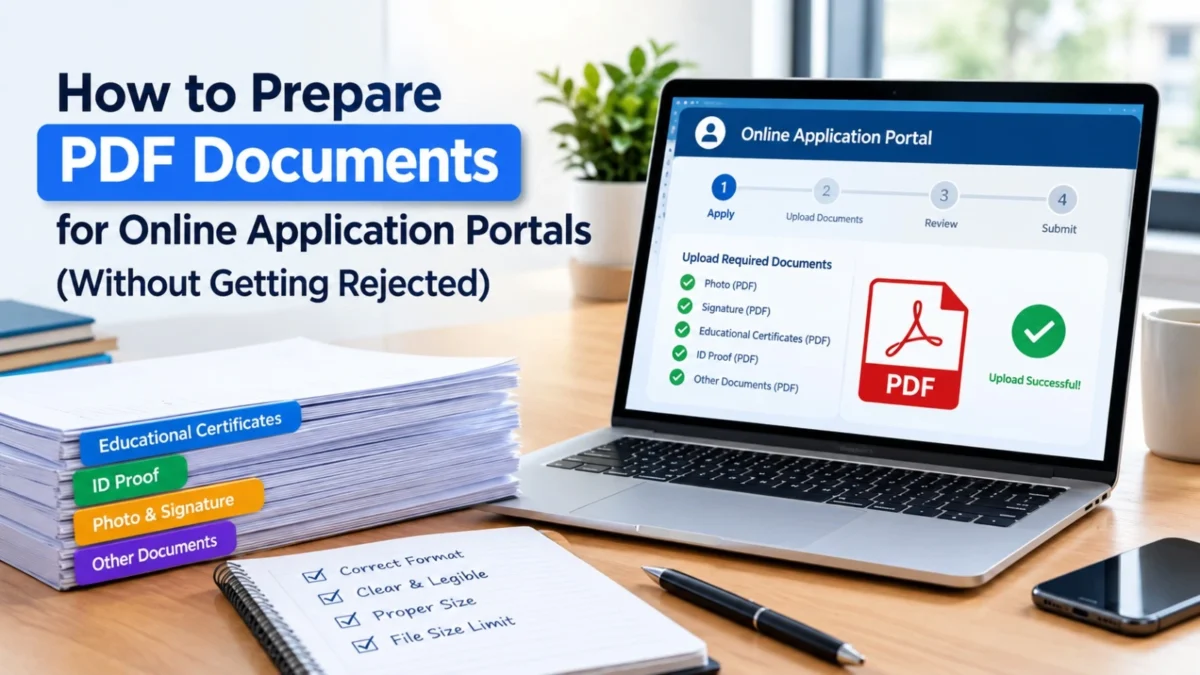
Most uploads aren’t rejected because of the documents. They’re rejected because of the file: too large, wrong order, sideways pages, or a scan too blurry to read. Here is a practical process that works for admission forms, scholarship portals and job applications.
Step 1: Read the notice first
Before scanning anything, note four things from the application notice:
- One file or separate uploads? If the portal has a box for each document, don’t merge. Merging in that case can get your application rejected.
- Format. Some boxes accept only PDF, while photo and signature boxes often want JPG.
- Size limit. Many portals state it in KB, and it can differ per document. Trust the number on the form, not a blog.
- Order. If the notice lists documents in a sequence, follow it exactly.
Step 2: Understand why scanned PDFs are huge
A PDF exported from Word is mostly text, so it stays small. A scanned PDF is a photograph of every page. Three things drive its size:
- Resolution. Higher DPI means more pixels. For documents that only need to be read, a moderate resolution is enough.
- Colour. A colour scan of a black-and-white page is bigger than a grayscale one.
- Page count. Twelve colour pages can be several times larger than the same pages in grayscale.
Scan sensibly the first time. Compression can shrink a file, but it can’t bring back detail it has already removed.
Step 3: Scan so the text stays readable
- Use daylight or even lighting, with no shadow from your hand or phone.
- Place the page on a plain, dark, flat surface.
- Hold the phone parallel to the page, not at an angle.
- Scan one page at a time and use edge detection.
- Choose grayscale unless colour matters, such as a coloured stamp or seal.
- Zoom in afterwards and check roll numbers, dates and names.
If you only have paper copies, the Scan to PDF tool on Skill India Updates works with your phone camera in the browser.
Step 4: Merge in the right order
Number your files before you start so the order is obvious:
1-Application-Form.pdf
2-Marksheet-10th.pdf
3-Marksheet-12th.pdf
4-Category-Certificate.pdf
5-ID-Proof.pdf
Add them to the Merge PDF tool, check the list order, use the arrows to correct it, then merge and download. Open the result and scroll through every page. Look for missing pages, wrong order and sideways pages. A rotated or misplaced page can be fixed in Organize PDF without rescanning, and blank pages can be removed with Delete PDF Pages.
Step 5: Compress carefully
If the merged file is over the limit:
- Keep a copy of the uncompressed file.
- Compress it with the PDF Compressor.
- Open the result and zoom into the smallest text, such as names, numbers, dates and stamps.
- If it’s blurry, go back to the original and rescan in grayscale or at a lower resolution instead.
If it’s still too big, ask whether every page is needed. Extract Pages lets you keep only what the portal asks for, such as the first page of a bank passbook rather than the whole book.
Step 6: Test any tool yourself in two minutes
Don’t take anyone’s word on speed, size or privacy, including ours. Run your own check:
- Compression: compress the same file in two or three tools, then compare file size and zoom into the text. Choose the one that gives a small file that still reads clearly.
- Privacy: on a computer, open Chrome or Edge, press F12, and go to the Network tab. Add your files and click merge. A tool that uploads your document shows a large outgoing request roughly the size of your file. A tool that processes locally does not.
Skill India Updates PDF tools are built to run inside your browser, so your files stay on your phone or computer, and you can use the Network check above to confirm it for yourself. They are free, with no signup and no watermark, and they support files up to 100 MB.
Which tool for which job
| Job | Good option |
| Merge, split, reorder and compress privately on a phone | Skill India Updates PDF tools |
| Extra features, with free-plan limits | iLovePDF, Smallpdf, PDF24 |
| Editing text inside a PDF | Adobe Acrobat, Sejda (our tools don’t edit text) |
| Scanning with auto-crop | Google Drive scanner, Adobe Scan, iPhone Notes |
| Signing a form | Acrobat Reader, Preview on Mac |
Most other online tools process files on their servers, so read their privacy terms before uploading certificates or ID proofs. For sensitive documents, avoid shared computers. If you must use one, close the tab and delete the downloaded file afterwards.
Mistakes that get applications rejected
- Merging when the portal wants separate uploads
- Submitting without opening the final file
- Compressing until stamps and numbers are unreadable
- Documents in the wrong order
- Photos taken at an angle, with shadows or cropped corners
- Overwriting your only original copy
- Vague names like final (3).pdf. Use something like Rahul-Sharma-Application-Documents.pdf
Pre-upload checklist
- I read the notice: format, size limit, order, single or separate files
- Every page is readable when zoomed in
- Pages are in the right order and the right way up
- No blank or duplicate pages
- File size is under the stated limit
- The file name is clear
- Originals are saved in a separate folder
Final word
A good submission comes from five habits: read the notice, scan clearly, merge in order, compress carefully, and check the final file. Do those and the tool matters much less. When you need a free, private place to do it all, try the PDF tools on Skill India Updates.
